How to Discuss Books with AI in Calibre on Mac (Without Metadata Limits)
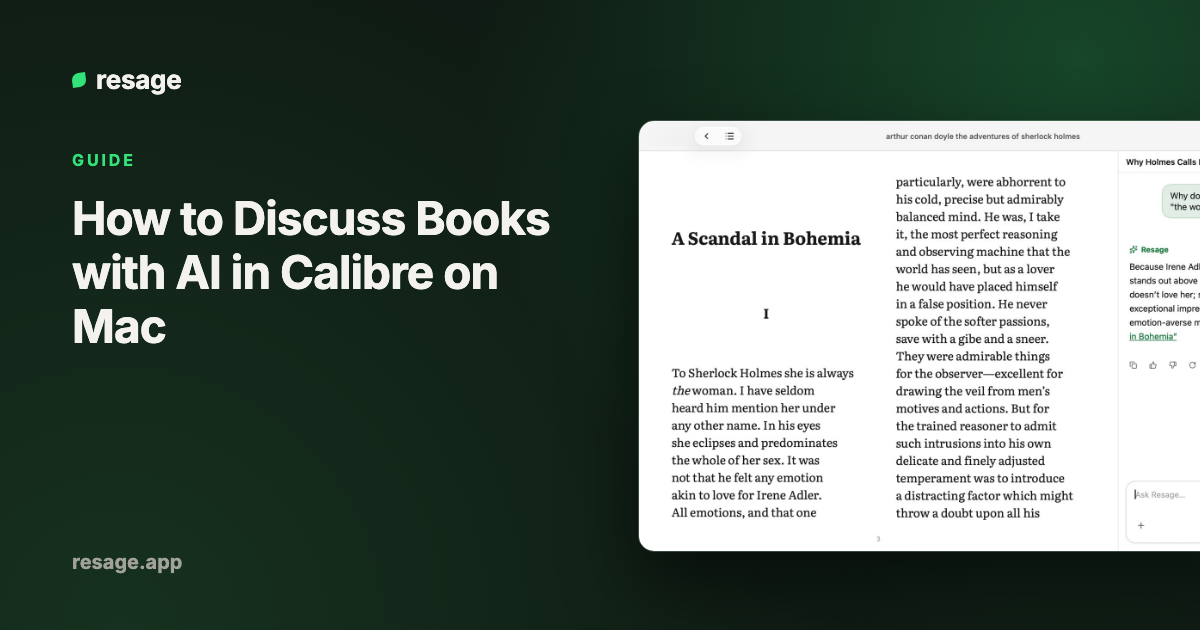
If you manage a large digital library on your Mac using Calibre, you might have noticed the experimental Discuss with AI feature added in Calibre 8.16.
The promise is exciting: asking questions about a book directly from your desktop library. But when you try asking detailed questions about specific chapters, arguments, or concepts, you quickly run into a common frustration — the AI either gives generic Wikipedia-like summaries or confesses it cannot find what you are referring to.
Here is why Calibre's built-in AI cannot search your pages, how to decide whether to disable it, and how to set up true full-text companion reading on macOS while keeping your Calibre catalog intact.
Why Calibre AI Can't Read What Is Inside Your Book
To understand why Calibre AI struggles with interior text, look at what gets sent to the language model when you click the discussion button:
- Book title and author
- Tags and series info
- Comments / Description field (the back-cover blurb)
That is all.
Calibre AI does not parse the internal HTML/text streams of your EPUB, PDF, MOBI, or AZW3 files. It does not index chapters or extract paragraph coordinates.
When you ask, "How does the author support the claim on page 140?", the model only has ~200 words of back-cover blurb in its prompt. For well-known classics, it fills the gaps from its training memory (often quoting wrong editions or hallucinatory translations). For modern non-fiction or niche titles, it simply fails.
The Two Approaches to AI in Desktop Reading
| Feature | Metadata Summary (Calibre AI) | Full-Text Companion (Resage) |
|---|---|---|
| Data Sent to AI | Title, author, tags, blurb (~200 words) | Only the specific paragraph/page you are discussing |
| Interior Text Access | ❌ None | Full document prepared in the cloud with AI consent |
| Page & Quote Grounding | ❌ Hallucinated / Generic | ✅ Exact page and paragraph citations |
| Reading Experience | Chat window over library list | Native reader with fluid typography and margin discussion |
| Catalog Impact | Adds UI buttons to library manager | Leaves Calibre library completely clean |
The Clean Solution: The "Open in Resage" Workflow
You don't have to choose between Calibre's world-class library management and deep, grounded AI reading. You can keep Calibre as your single source of truth for file storage and metadata, and use a dedicated companion reader when you are actively studying a book.
Step 1: Install the Free "Open in Resage" Plugin
We created a lightweight, open-source Calibre plugin that adds a single bridge button to your toolbar.
- Download the plugin package from Open in Resage Plugin.
- In Calibre, open Preferences (⌘ + ,) → Advanced → Plugins.
- Click Load plugin from file and choose
open_in_resage.zip. - Restart Calibre.
Step 2: Select Any Book and Launch
Select a book in your library and click Open in Resage in your toolbar (or right-click and choose it from the context menu).
- The plugin automatically selects your best available format (
EPUB > AZW3 > MOBI > PDF > DOCX > TXT > MD). - It passes the local file path directly to Resage for Mac via macOS system calls without duplicating files.
Step 3: Read and Discuss with Full-Book Context
Once inside Resage:
- With AI consent, newly imported books are parsed and indexed in the cloud; temporary uploaded originals are deleted after processing.
- As you read page by page, you can ask about difficult terminology, historical references, or structural arguments.
- The AI remembers what you have discussed across sessions and across different books in your library.
What If You Want to Turn Calibre AI Off Completely?
If you prefer a clutter-free Calibre toolbar and do not want background API requests:
- Open Calibre Preferences with
⌘ + ,. - Under Interface, click Toolbars & menus.
- Select The main toolbar from the dropdown.
- Select Discuss with AI in the right column and click the left arrow to remove it.
- Repeat for The book list context menu, then click Apply and restart Calibre.
For a complete breakdown of Calibre AI settings, see our dedicated guide: What is Calibre AI and how to disable it.
Summary
- Calibre 8.16's built-in AI only reads catalog metadata, not full book text.
- For deep reading of complex non-fiction, reading from the full text of your file, not from memory of the title, is essential to avoid hallucinations.
- Using Calibre for library management alongside Resage for Mac gives you the best of both worlds: a clean, organized catalog and an intelligent companion that actually reads alongside you.
Related reading: