Guide
What is Calibre AI, why can't it find your book, and how do you turn it off?
Calibre 8.16 introduced Discuss with AI, but it only reads titles and catalog blurb — not the text inside your files. Here is how Calibre AI works, why it cannot search your pages, how to disable it completely, and what full-text discussion looks like.
Calibre 8.16 added an experimental "Discuss with AI" feature. If you keep a large digital collection on your Mac, you probably noticed the new button and tried asking it about one of your books — and almost immediately ran into one of two problems.
Either the answer was fluent but completely generic, describing the title in broad strokes from the model's training data rather than your edition; or the AI reported directly that it could not find what you were asking about.
This page answers three questions honestly: what Calibre AI actually does, why "can't find my book" is an architectural boundary rather than a temporary bug, and how to disable it completely if you prefer a clean interface.
What Calibre AI is, and what it actually does
Calibre's AI integration connects your desktop catalog to an external large language model using your own API key.
When you trigger a discussion from the toolbar, here is what Calibre actually sends to the model:
- The title and author of the selected entry.
- The tags and series information.
- The comments / description field (the back-cover blurb).
That is the entire payload. Calibre AI does not open the underlying EPUB, PDF, MOBI, or AZW3 file. It does not parse the text stream, extract chapters, chunk paragraphs, or build a semantic search index across the pages.
For what it was designed to do, this makes sense: it can help draft a missing book description, suggest tags, or offer a surface-level overview of a well-known classic. But if you expect it to read alongside you, it cannot see the page you are on.
Why Calibre AI can't find what is inside your book
When you ask Calibre AI a specific question — What argument does chapter 4 make? or Where does the author define this concept? — the feature fails in a predictable way.
There are two reasons for this, and both are structural:
1. It has no access to the interior text. Because only catalog blurb and tags travel to the model, a 600-page treatise is represented by around two hundred words of summary. When you ask about a specific passage or scene, the model looks at those two hundred words, finds nothing matching your question, and either reports that it cannot find the book's contents or improvises.
2. When it does answer, it answers from memory. If you ask about a canonical work like The Republic or Moby-Dick, the AI will give you an answer that sounds convincing. But that answer is drawn from whatever commentary the model encountered during pre-training — not from your file. It will cite chapters that do not match your edition, quote translations you are not reading, and cannot point to a single page in your file.
This is an architectural division, not a bug. Calibre is built as a desktop catalog and format converter. Extracting full document text, indexing passages for retrieval, anchoring discussions to specific page coordinates, and maintaining reading memory across sessions are reading-layer problems that require an entirely different architecture.
How to disable Calibre AI completely
If you do not want AI features in your catalog and want your interface back to normal, you can turn them off in under a minute.
Here are the complete steps to remove Calibre AI from your setup:
Step 1: Remove the AI action from toolbars and menus
- Open Calibre and press
⌘ + ,(or click Preferences in the toolbar). - Under the Interface section, click Toolbars & menus.
- In the top dropdown, select The main toolbar.
- In the right-hand column (Current actions), find Discuss with AI (or the AI action button).
- Click the left-arrow button to move it to the left-hand column (Available actions).
- In the dropdown, switch to The book list context menu and repeat the removal if the action appears there.
- Click Apply in the bottom right corner.
Step 2: Clear configured API keys or providers
- In Preferences, scroll to Advanced and click Plugins (or open the AI settings dialog if configured).
- If you entered an API key or provider endpoint, select the configuration and clear the API key field or delete the configured profile.
- If the AI integration was installed as a user-interface plugin, you can select it from the plugin list and click Disable plugin or Remove plugin.
Step 3: Restart Calibre
Close Calibre completely (⌘ + Q) and reopen it. Your toolbar and menus will return to their clean, traditional state with zero background network requests.
If you prefer to keep your cataloging setup untouched and want AI discussion to happen inside a dedicated reading tool, an independent companion like Resage reads your local files directly while leaving your desktop catalog completely clean.
What real full-text reading with AI looks like
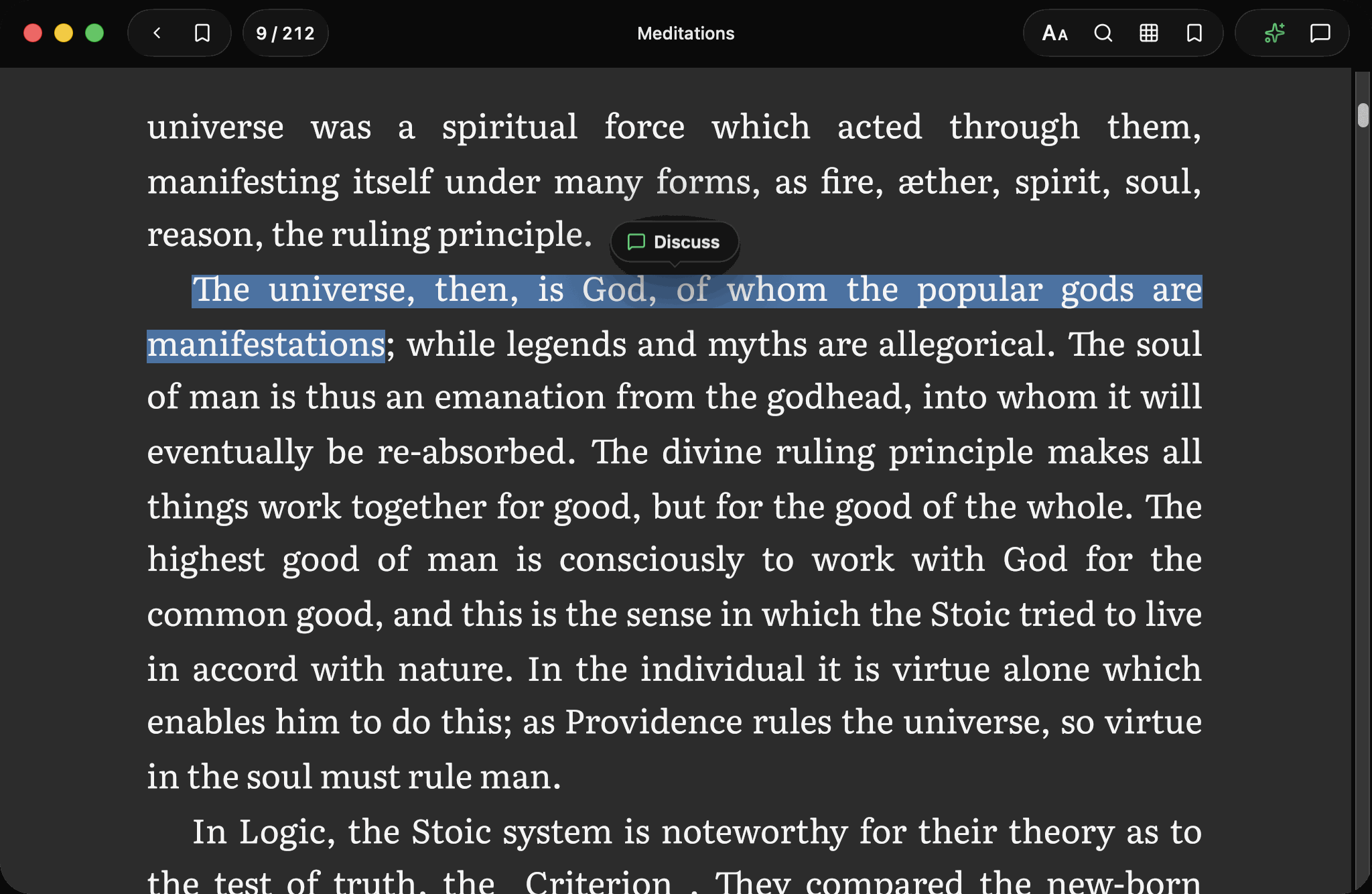
When an AI reading layer is built to read alongside you rather than summarize from afar, the technical requirements look very different:
- Cloud book preparation. With AI consent, newly imported books are parsed and indexed in the cloud. You can search concepts, trace arguments across chapters, and ask questions from any page.
- Anchored passage citations. When the AI answers a question about your book, it points to the exact paragraph and page number. If it draws on general knowledge instead, it labels that explicitly so you never confuse the two.
- No metadata dependencies. It does not matter whether your file has tags or a description blurb. The AI reads the actual text stream in front of you.
- Your catalog stays your catalog. You do not need to replace your desktop collection tools. You can use Calibre to store and organize your files, and send books you are actively reading into a dedicated companion using our free Open in Resage plugin.
Where it stops
- macOS 14.0 or later on Apple Silicon. iPhone is next; no Windows, Android, or web version.
- You bring your own files. PDF, EPUB, Word (DOCX), TXT, Markdown, and DRM-free Kindle files (MOBI, AZW3, AZW) all open directly.
- No DRM removal. Books bought from the Kindle store with DRM cannot be opened by any third-party reader. We do not remove DRM and do not link to tools that do.
- Not an e-book organizer. Resage does not do what Calibre does — no bulk file renaming, no format conversion, and no device syncing.
- Discussion needs an internet connection. Reading downloaded books works offline. Cloud Digest and AI discussion require an internet connection and AI consent.
FAQ
Does Calibre AI read the text inside EPUB or PDF files?
No. Calibre AI only accesses catalog information such as the title, author, tags, and description blurb. It does not extract or index the full text inside your book files.
Why does Calibre AI give inaccurate answers about book chapters?
Because Calibre does not pass the book's full text to the model, the AI answers entirely from its pre-training memory. For well-known books it recalls general commentary; for specific passages or less common books, it cannot locate the content.
Can I use Resage together with my existing Calibre setup?
Yes. You can drag any DRM-free EPUB, PDF, MOBI, or AZW3 file from your Calibre storage into Resage, or install our open-source Open in Resage plugin to send selected books directly from Calibre into Resage with one click.
Does Resage replace Calibre?
No. Calibre is designed for desktop cataloging, format conversion, and device syncing. Resage is a focused reading environment with an on-page AI companion. They complement each other.
What does Resage cost?
Free to start, with a monthly discussion allowance. Importing and reading are not charged. Cloud Digest has its own monthly allowance (3, 30 or 90 books on Free, Plus or Pro), and scanned-page text recognition is counted by page (1,500, 8,000 or 24,000 pages a month). Resage Plus is $9.99 a month or $99.99 a year; Resage Pro is $29.99 a month or $299.99 a year, with 3x the Plus allowances.