Guide
How do you read your Calibre ebook library on a Mac?
How to read your Calibre library on macOS using the built-in viewer, native readers, and the Open in Resage plugin for on-page AI discussion.
If you use Calibre on a Mac, your ebooks are already meticulously cataloged: clean metadata, downloaded covers, accurate tags, and formats organized inside your ~/Calibre Library/ directory.
Yet for many readers, a large Calibre library leads to a familiar frustration: hundreds of carefully tagged books, and more time spent managing metadata than actually reading them.
Managing an ebook collection and deeply reading a difficult book are two completely different activities. Here is how the options for reading a Calibre library on macOS compare, and how to read your collection without disturbing your folder structure.
Option 1: Calibre's built-in E-book Viewer
The most direct way to read any book in your collection is Calibre's built-in reader:
- Open Calibre on your Mac.
- Select any book in your library table.
- Click the View button in the top toolbar (or press
Von your keyboard).
Where it excels:
- Zero configuration: It opens immediately from your database without copying or moving files.
- Universal format support: Opens EPUB, MOBI, AZW3, PDF, DOCX, TXT, and comic formats.
- Extensive customization: Font size, column layouts, custom CSS stylesheets, and keyboard shortcuts.
The honest limits:
- Utilitarian interface: It opens in a separate desktop utility window that feels dated compared to modern macOS applications.
- No discussion or comprehension help: When you encounter a dense philosophical argument or obscure historical reference, you have to leave the reader to look it up.
Option 2: Dragging files into Apple Books
Some readers prefer macOS's native aesthetics and drag EPUBs from Calibre into Apple Books:
- In Calibre, select a book and click Save to disk or drag the file into Finder.
- Drag the exported
.epubinto Apple Books.
The honest limits:
- Format friction: Apple Books rejects MOBI and AZW3 files from your Kindle collection unless you convert them to EPUB first.
- PDF handoff: Apple Books does not render PDFs in its main reading view; it hands them off to macOS Preview.
- Duplicate storage: Apple Books copies every file into its own opaque container, duplicating disk space.
Option 3: A dedicated reading companion (Resage)
If you want a modern Mac reader that connects directly to Calibre without duplicating files or losing your metadata setup, you can use Resage alongside Calibre.
1. The "Open in Resage" Calibre plugin
We built an open-source Calibre plugin — Open in Resage — that adds a direct bridge between Calibre and Resage:
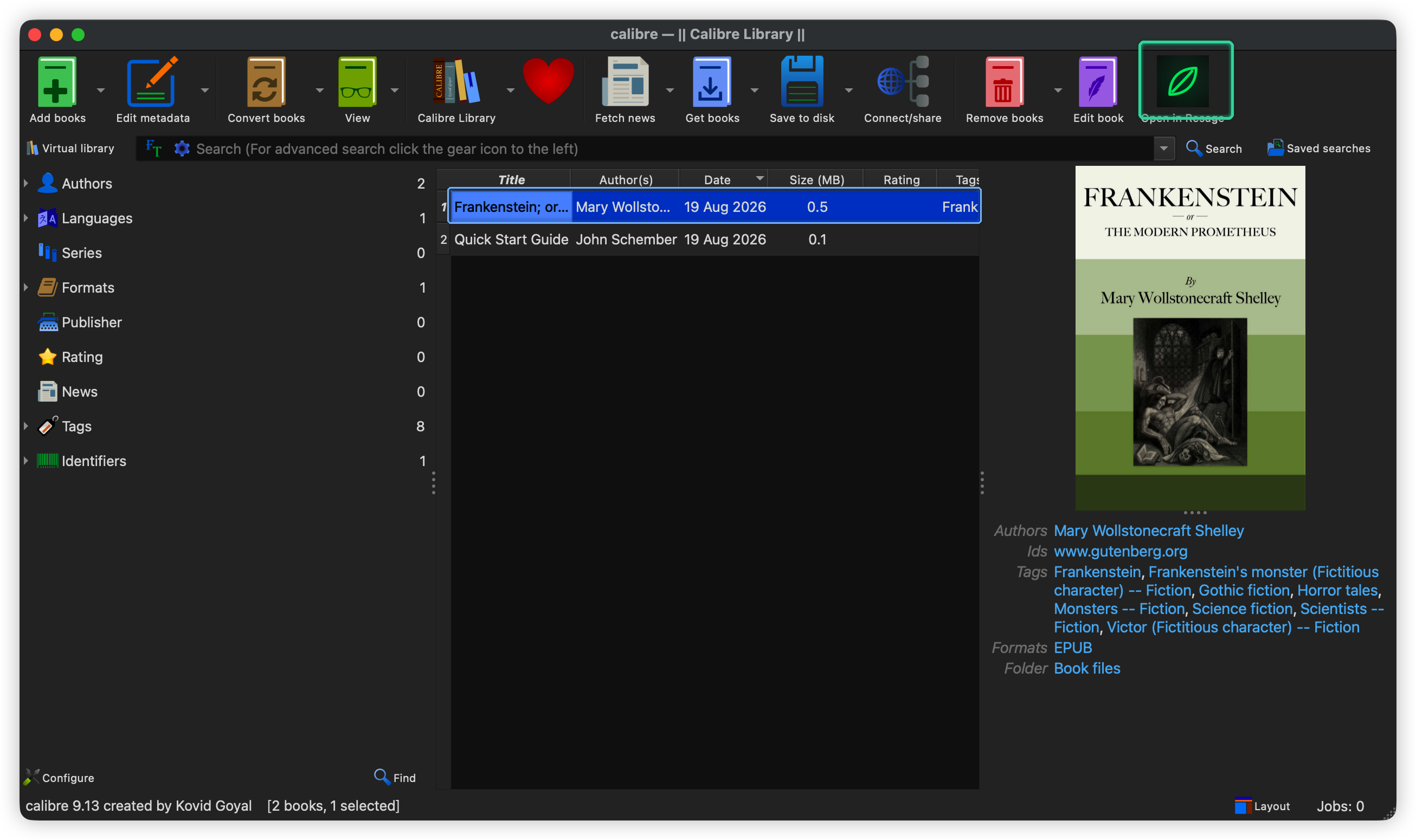
- Select any book in Calibre and click Open in Resage on the toolbar (or right-click → Open in Resage).
- Resage opens the file directly from your Calibre library folder without duplicating storage or modifying your metadata.
- Smart format selection automatically picks the best available format (EPUB, AZW3, MOBI, or PDF).
2. Direct drag-and-drop
You can also drag any file directly from Calibre's book details pane or your ~/Calibre Library/ folder straight into Resage.
What changes when reading with an AI companion
For a catalog of dense non-fiction, philosophy, or technical books, getting stuck on difficult chapters is the main barrier to finishing books. Resage adds an on-page discussion layer specifically for deep reading:
- Ask without leaving the page: Select an ambiguous sentence or argument and ask for clarification. The answer quotes the book's text rather than inventing explanations.
- Cross-book memory: Resage remembers what you have discussed and where you got stuck, tailoring future explanations across different books in your library.
- Digest for full-book search: Use cloud Digest after AI consent to search concepts and your past discussions across the entire book from any page.
Where we stop: we do not manage libraries
An explicit boundary is important: we do not do library management or metadata editing.
Resage is not an ebook manager and does not replace Calibre:
- We do not edit EPUB metadata, author names, or publisher tags.
- We do not scrape covers from Goodreads or fetch ISBN numbers.
- We do not convert file formats or manage e-ink device drivers.
Calibre is the undisputed standard for managing digital book files. Keep Calibre for library management, tagging, and format conversions; open Resage when you are ready to sit down and read.
Summary: reading options compared
| Option | Format support | Interface feel | Discussion & AI | Best for |
|---|---|---|---|---|
| Calibre Viewer | Every format (EPUB, MOBI, AZW3, PDF) | Utilitarian desktop window | None | Quick reference & custom CSS tweaks |
| Apple Books | EPUB & PDF only (no MOBI/AZW3) | Calm, native typography | None | Casual reading of simple EPUBs |
| Resage | EPUB, PDF (original layout), MOBI, AZW3, DOCX, TXT, MD | Modern, distraction-free macOS reader | On-page AI anchored to text + cross-book memory | Deep reading & getting through difficult books |
FAQ
Can I open books from Calibre in Resage without making duplicate files?
Yes. Using the Open in Resage Calibre plugin or opening files from your ~/Calibre Library/ path allows Resage to read your existing files directly without duplicating your library storage.
Does Resage replace Calibre for organizing my ebooks?
No. Resage does not do library management, metadata editing, or format conversion. Calibre remains the best tool for managing your catalog, while Resage provides a dedicated deep-reading environment.
Which formats from my Calibre library can Resage open?
Resage supports PDF (in original fixed layout), EPUB, DRM-free MOBI and AZW3, Microsoft Word (.docx), TXT, and Markdown files. DRM-protected store purchases and Kindle print replicas (.azw4) are not supported.
Are my Calibre files uploaded to a remote server?
With your AI data-processing consent, newly imported books are prepared in the cloud on Mac, iPhone, and iPad; temporary uploaded originals are deleted when processing finishes. Without consent, reading uses lightweight local parsing without cloud-preparation uploads. AI answers use relevant passages. Your content is never used to train models.
How do I install the Open in Resage plugin in Calibre?
Download the plugin zip file and open Calibre → Preferences → Plugins → Load plugin from file. Detailed installation steps and screenshots are available in our Calibre Plugin Guide.