Open in Resage: A Calm Bridge Between Calibre and Deep Reading
If you use Calibre to manage your digital library, your books already have a home: organized metadata, clean covers, and formats neatly tucked into folders on your Mac.
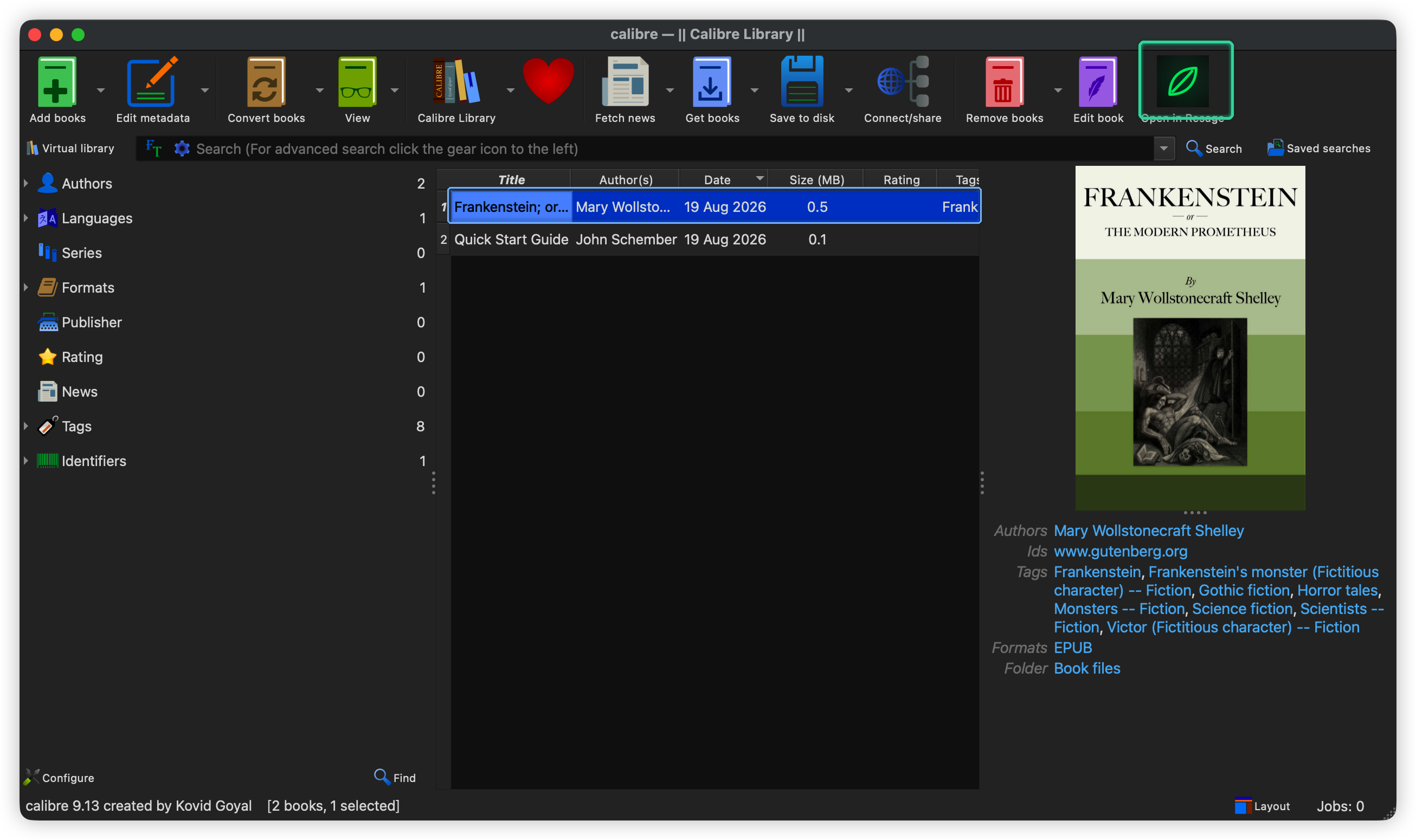
Starting today, you can send any book directly from your Calibre library into Resage with a single click.
We built Open in Resage, an open-source Calibre plugin designed as a quiet, respectful bridge between your library manager and your reading companion.
Why a lightweight bridge, not an in-app sidebar
Many readers keep Calibre open as their single source of truth for managing thousands of files. When people want AI assistance while reading, the last thing they want is a bloated toolbar or intrusive chat sidebars cluttering their cataloging interface.
Resage takes a different approach:
- Calibre stays clean. The plugin does not inject discussion sidebars or alter Calibre's interface. It only adds an action button on your toolbar and context menu.
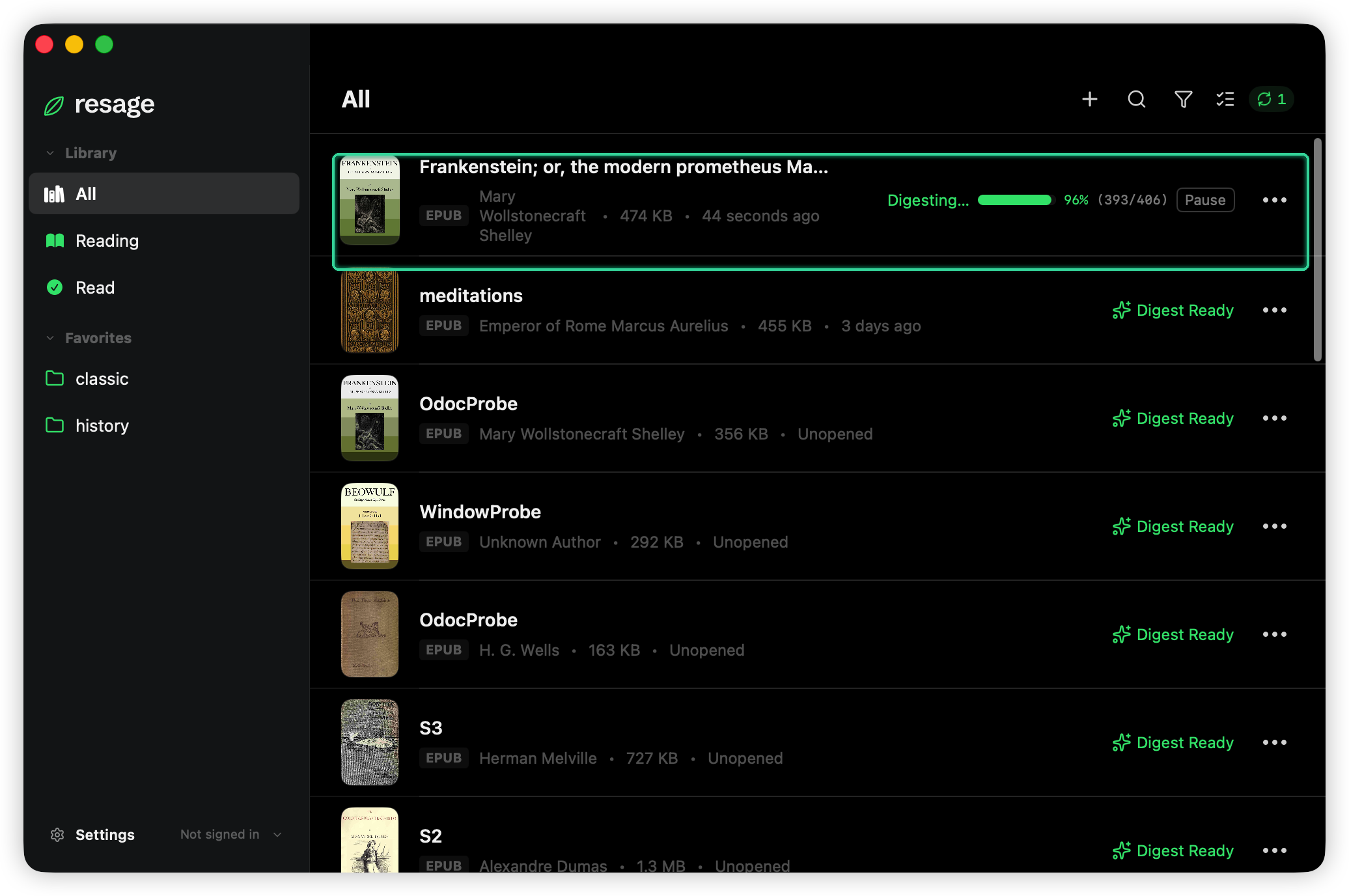
- True full-book grounding. Rather than hallucinating from vague training memory or book titles, Resage digests your actual local file, anchors every insight to exact pages, and keeps your discussions synchronized.
- Cloud preparation follows your AI consent. The plugin passes the local file path directly to Resage using standard macOS system open calls. The plugin itself does not upload files or create temporary copies. Resage uses cloud preparation for newly imported books after AI consent.
What the plugin does
- One-click launch from toolbar or context menu. Select a book (or up to 20 books at once), click Open in Resage, and the app opens them instantly.
- Smart format selection. If you have multiple formats of the same book, the plugin automatically picks the best format for Resage in priority order:
EPUB > AZW3 > MOBI > PDF > DOCX > TXT > MD. - Seamless digestion and discussion. With AI consent, newly imported books are indexed in the cloud so you can discuss arguments, look up historical context, or trace motifs across the text.
Supported formats and requirements
- Formats:
.epub,.azw3,.mobi,.pdf,.docx,.txt,.md. - System: macOS (Apple Silicon recommended, macOS 14+).
- Software: Calibre 6.0 or newer, and Resage 1.0.5 or newer.
- Note: The plugin respects file integrity and does not remove or bypass DRM.
How to get and install the plugin
The plugin is free and open-source.
Step 1: Download the plugin zip
Download the pre-built plugin package directly from our website:
👉 Download open_in_resage.zip (v1.0.0)
(Source code is also available in the Resage repository on GitHub).
Step 2: Load the plugin in Calibre
- Open Calibre and go to Preferences (⌘ + ,).
- Under Advanced, click Plugins.
- Click Load plugin from file in the bottom right corner.
- Select the downloaded
open_in_resage.zipfile. - Confirm when Calibre asks if you trust the plugin, and restart Calibre when prompted.
Step 3: Add to Context Menu (Optional)
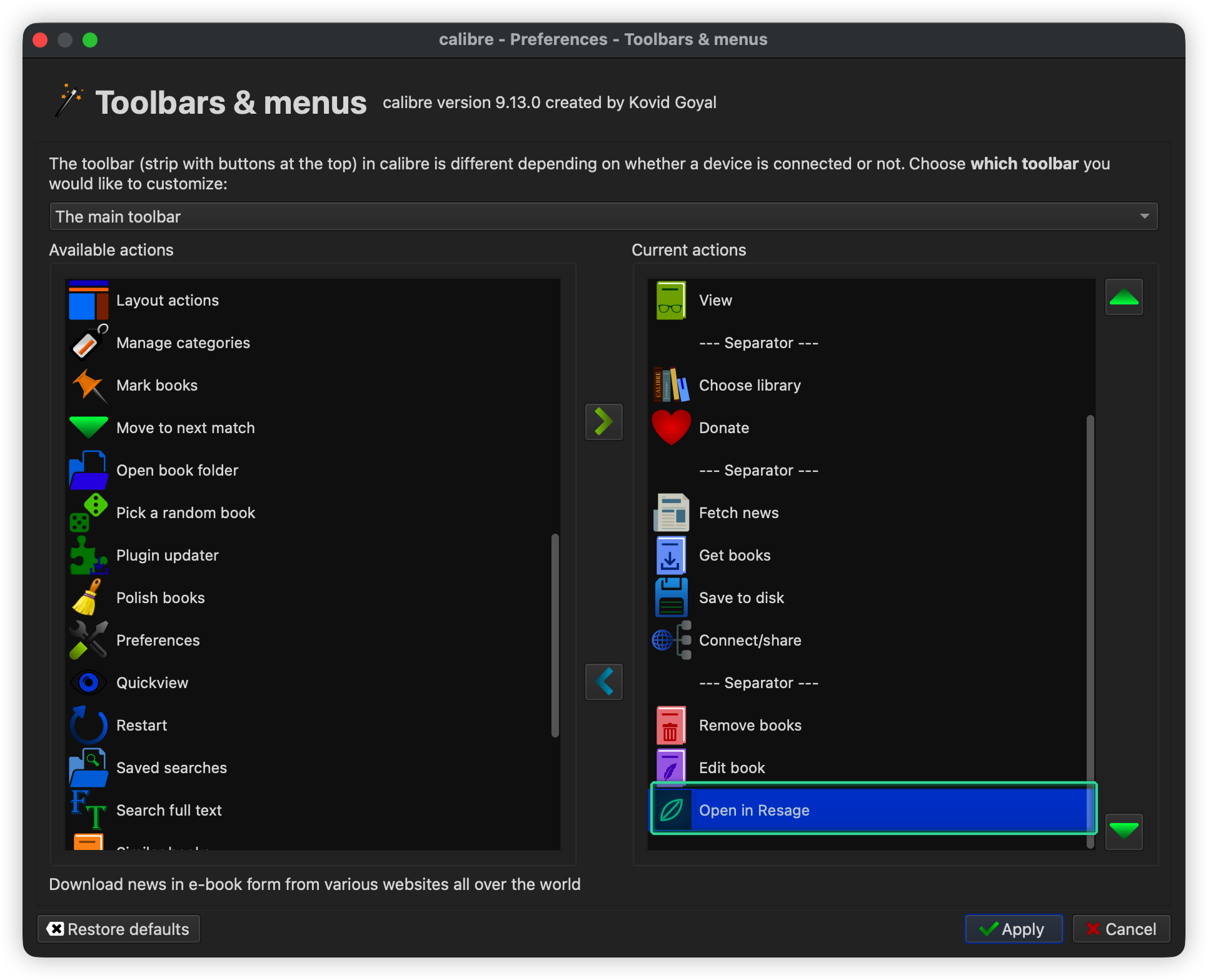
Calibre adds new action buttons to the main toolbar by default. If you also want Open in Resage in your right-click context menu:
- In Calibre, go to Preferences → Interface → Toolbars & menus.
- Select The book list context menu from the dropdown.
- Find Open in Resage in the left column (Available actions) and move it to the right column (Current actions).
- Click Apply.
Try it today
Install the plugin, select a file you have been meaning to dive into, and click Open in Resage.
If you have questions or suggestions for the plugin, reach out to hello@resage.app or open an issue on GitHub.
Happy reading.